Heat kills quietly.
I’ve watched too many deployments fail the same dumb way: the NAS boots fine, the CPU looks “normal,” the fans spin, and then—after 6 to 72 hours of real write load—one drive bay runs 8–15°C hotter than its neighbors because air is sneaking around the cage instead of through it, and your “reliable” array starts living on borrowed time.
Want to find out after you’ve racked 40 units?
Here’s the hard truth I’m going to insist on: NAS cooling isn’t a fan problem—it’s a pressure + routing problem. Packed drive bays are basically a brick wall. If you don’t force airflow through the HDD stack, you’re just stirring warm air inside a metal box. iSTONECASE even says it plainly in their own writeup: static pressure matters, gaps matter, and mixed RPM drive thermals can cook neighbors. Read their blunt version here: NAS case cooling for high-density HDD arrays.
And this isn’t academic. Cooling is a measurable cost center at scale: the IEA notes that cooling/environmental control can be ~7% of total consumption in efficient hyperscale data centers and over 30% in less-efficient enterprise facilities, while estimating data centers at ~415 TWh in 2024 (~1.5% of global electricity). If the grown-ups are sweating cooling overhead, your NAS closet in a warm office should be, too. IEA: Energy demand from AI (data centres, cooling share).
What we’re actually testing (and what most people miss)
Most teams test “temperature.” I test temperature distribution and thermal creep.
- Distribution: hottest drive vs coolest drive across bays under steady load.
- Creep: temps that keep rising hour-after-hour because airflow is marginal or recirculating.
- Routing: whether air goes through the drive cage or bypasses it via gaps, side leaks, and cable mess.
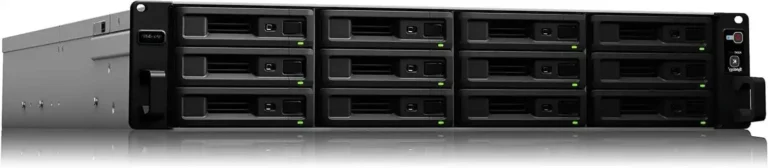
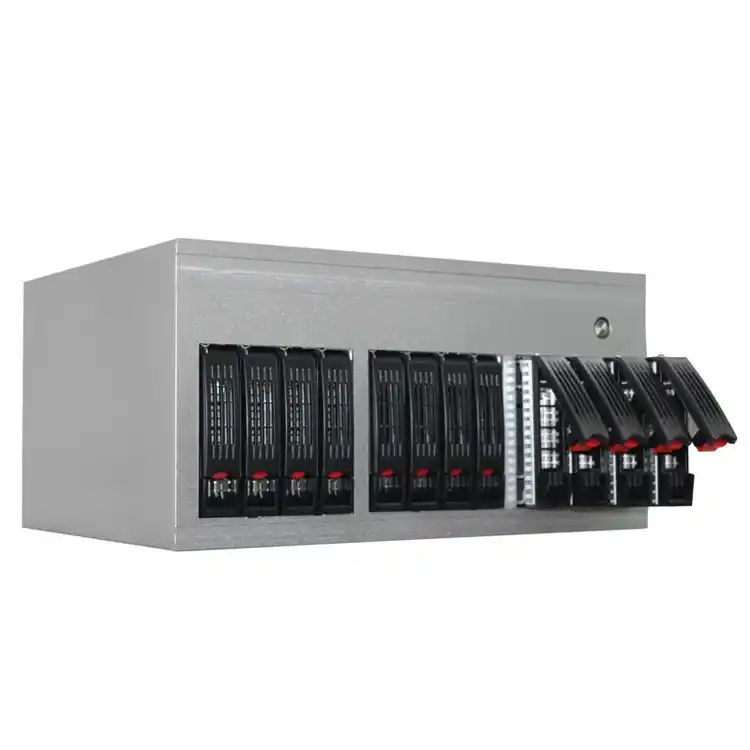
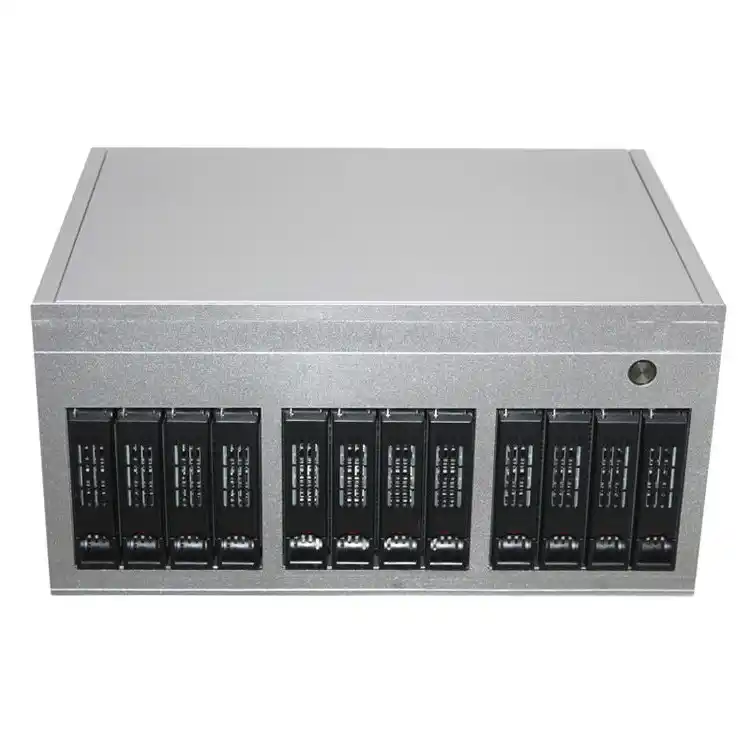
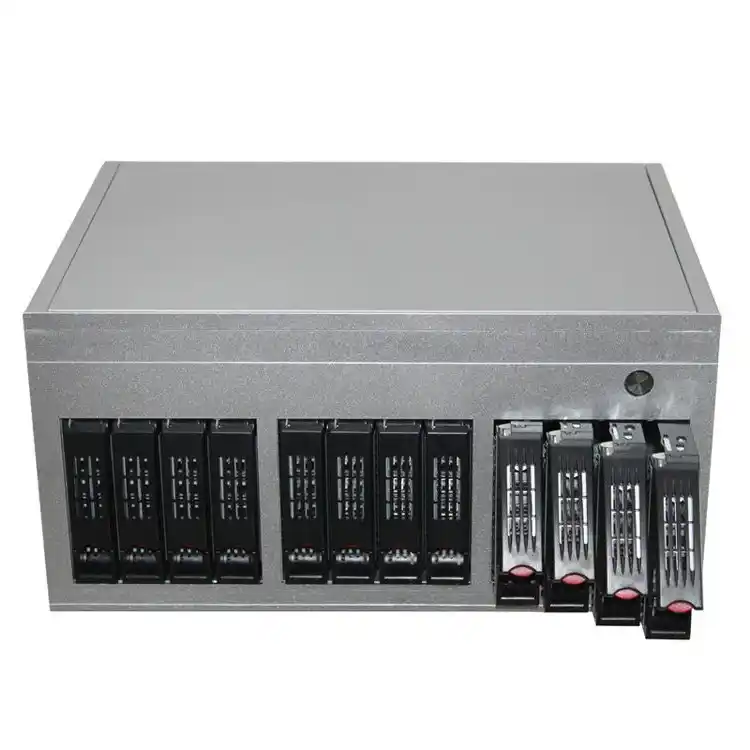
If you’re buying chassis marketed with “intelligent temperature control,” I’m still skeptical. A controller can’t fix a bypass leak. A fan can’t push through a blocked path. If you want examples of dense layouts that demand real airflow control, look at a 12-bay design with multiple fan positions like 12 Bay NAS Case ISC NS12S4 (5×90mm + 3×120mm fan positions). The geometry is the story, not the marketing copy.
The pre-deployment test protocol I’d sign my name to
1 Lock the test conditions (or your data is garbage)
Pick one ambient condition and document it. I’m fine with 22°C (lab) and a second pass at 30°C (ugly closet simulation). Log:
- Ambient dry-bulb temperature (°C)
- Relative humidity (%)
- Fan RPMs (front/mid/rear if available)
- Drive model + RPM + capacity (e.g., WD Red Pro 7200 RPM vs Seagate Exos)
- Case configuration (number of bays populated, blanks installed, filters on/off)
For environmental sanity, ASHRAE’s TC 9.9 reference card lists a recommended dry-bulb envelope of 18–27°C for common classes, with tighter guidance for higher-density gear. That’s not “NAS gospel,” but it’s a reality check for what “normal” looks like in equipment terms. ASHRAE TC 9.9 Thermal Guidelines Reference Card (2021, rev. exp.).
2 Do a real NAS airflow test (not a vibes check)
Two cheap, high-signal methods:
A. Smoke / fog routing test (5 minutes, high value)
You’re looking for bypass. If smoke gets sucked around the sides of the drive cage, you have a routing failure. Seal gaps with simple plates/foam (EPDM, PU, whatever you can repeat) until smoke is forced through the drives.
B. “Pressure tells the truth” test
If you can measure differential pressure (even rough), do it. Static pressure fans matter in dense cages—again, iSTONECASE calls this out explicitly: open-air CFM means little when the cage is a wall.
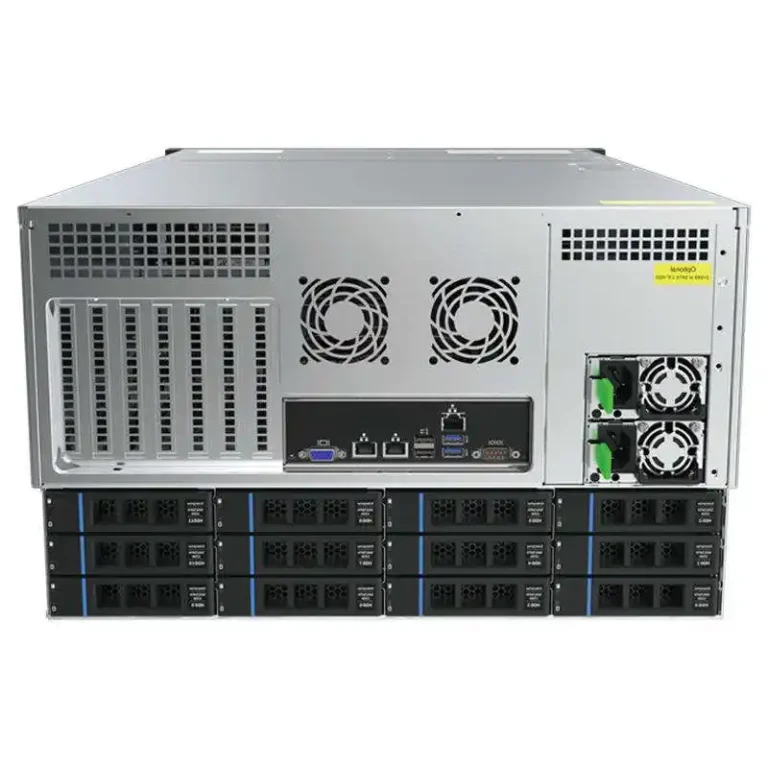
If you’re evaluating higher-density chassis with hot-swap mid-wall fans (the 120×38mm “12038” style), that’s a clue the manufacturer expects restriction and needs pressure. Example: 4U ISC-SC465B24-L with 3 hot-swap 12038 fans.
3 Instrument the drive temperatures correctly
You need two layers:
Layer 1: SMART temperature logging (every 60s)
- Pull SMART temps for each disk bay and log to CSV.
- Track min / mean / 95th percentile / max per drive.
- Watch for drives that sit “fine” at idle but spike during sustained writes.
Layer 2: Spot-check the physical reality
SMART can lag. Add at least one K-type probe or IR spot-check on:
- front of drive (inlet side)
- rear of drive (exhaust side)
- “problem bay” identified by SMART
What I care about:
- Hottest bay absolute temp
- Delta across bays (hot-cold spread)
- Delta across a single drive (inlet vs exhaust)
4 Load the NAS like you hate it (NAS burn-in testing)
If you’re not doing a soak, you’re guessing.
Run a 24–48 hour mixed workload:
- sequential writes (heat the drive bodies)
- random reads/writes (heat the controller + backplane behavior)
- parity rebuild simulation if applicable (ZFS resilver / RAID rebuild style)
iSTONECASE’s own thermal-performance material for mass deployment talks about the 24–48 hour burn-in pattern because it catches thermal creep and overnight failures—the stuff that embarrasses teams. Thermal validation before mass deployment (burn-in emphasis).
And if you’re outsourcing assembly, I’d demand a burn-in artifact trail (logs, slot maps, photos). Their server chassis assembly services page literally frames this as “functional test + thermal soak + firmware baseline.” Good. Make it contractual.
5 Pass/fail thresholds (my opinionated version)
Vendors publish wide operating ranges; operators live in narrower ones. Here’s what I’d use for pre-deploy gating:
- Target sustained HDD temps: 30–45°C
- Hard warning line: sustained >50°C on any bay under steady load
- Bay imbalance: hottest-to-coolest spread >7°C is a routing problem until proven otherwise
- Creep rule: if temps rise >3°C between hour 2 and hour 8 at constant workload, airflow is marginal (or recirculating)
No, those numbers aren’t holy. They’re practical. They prevent you from shipping a chassis that “technically runs” but punishes a couple of bays all year.
Best NAS fan configuration (the stuff people argue about, then get wrong)
Front-to-back is boring. Good.
If your case design supports it, aim for straight, constrained flow: intake → drive cage → exhaust, with minimal side leakage. Then:
- Prefer static-pressure-capable fans for dense cages (12038-class fans exist for a reason).
- Block useless gaps so air has one job: pass through the drives.
- Don’t let cables drape across intakes. Air hates spaghetti.
- Use blanks where bays are empty; open bays become bypass vents.
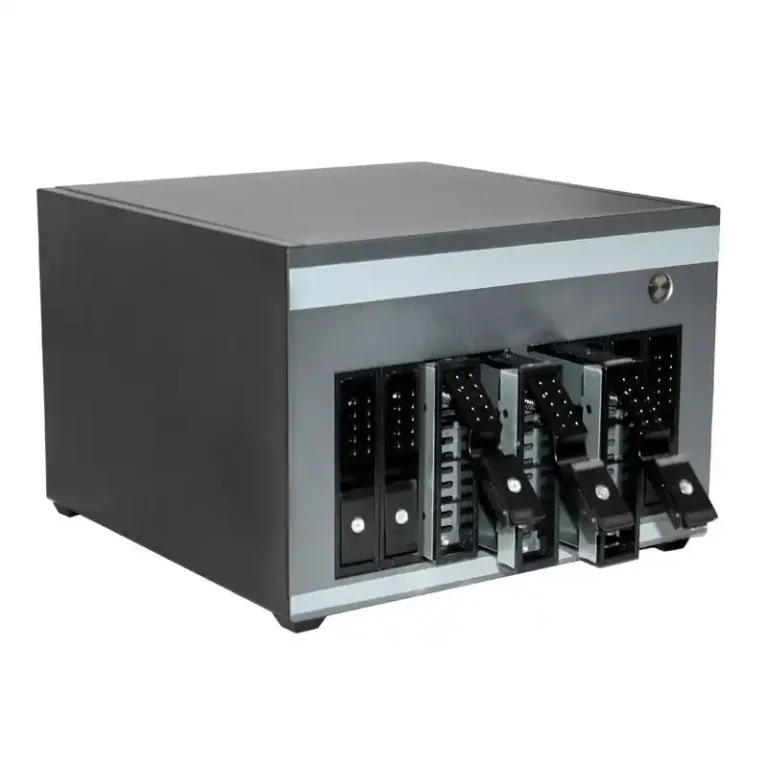
For small builds, a compact chassis like the ISC NS4SP T 4-bay NAS case leans on a single 120mm-class fan approach—fine, but it raises the stakes on routing and obstruction control.
What to log (because arguing without logs is just ego)
- Per-drive SMART temp every 60 seconds
- Fan RPM every 60 seconds
- Ambient temp every 60 seconds
- Workload phase markers (start/end of sequential write, random phase, rebuild simulation)
Then produce a one-page chart internally: max temp by bay + delta across bays. If you can’t explain why bay #7 is always hotter, you’re not ready.
Comparison table: airflow + temperature test methods (what each one catches)
| Method | What it reveals fast | What it misses | Who should use it |
|---|---|---|---|
| Smoke / fog routing | Bypass leaks, recirculation, dead zones | Exact CFM, exact pressure | Everyone doing NAS case airflow testing |
| SMART temp logging | Hot bays, thermal creep, drive-to-drive delta | Fast transients, sensor lag | Everyone monitoring HDD temperature SMART attributes |
| K-type thermocouples | True surface temps at inlet/exhaust | Full-bay coverage unless you add many probes | Lab validation, problem-bay diagnosis |
| IR spot checks | Quick verification, “is SMART lying?” | Emissivity errors, hard-to-see surfaces | Field checks, sanity checks |
| Differential pressure | Whether fans can “punch through” the cage | Doesn’t locate the exact leak | High-density drive bay cooling setups |
FAQs
How do I check hard drive temperature on a NAS?
Hard drive temperature monitoring on a NAS means reading each disk’s onboard thermal sensor (typically via SMART) and logging it over time so you can see sustained heat, spikes, and bay-to-bay imbalance rather than a single snapshot. In practice, use your NAS OS dashboard or smartmontools and log at 60-second intervals during load.
What is a NAS airflow test?
A NAS airflow test is a repeatable procedure that verifies air is routed through the drive cage (not around it) by using a visual tracer (smoke/fog), fan RPM checks, and temperature distribution data from each bay under sustained workload. The goal is to detect bypass leaks, dead zones, and thermal creep before deployment.
What are SMART attributes for HDD temperature, and why do they matter?
HDD temperature SMART attributes are telemetry fields exposed by a drive’s Self-Monitoring, Analysis, and Reporting Technology system that report internal temperature readings and sometimes related counters, letting you quantify which bays run hot under real writes. They matter because they’re per-drive, continuous, and cheap to log at scale.
What is NAS burn-in testing, and how long should it run?
NAS burn-in testing is a controlled 24–48 hour soak where you run sustained mixed I/O workloads (sequential + random + rebuild-like stress) while logging drive temperatures, fan behavior, and stability signals to uncover thermal creep and intermittent faults that short tests miss. Short runs are for demos; burn-in is for shipping.
What is the best NAS fan configuration for drive bay cooling?
The best NAS fan configuration is a constrained, front-to-back flow path that uses static-pressure-capable fans, sealed gaps, and bay blanks to force air through the HDD stack and keep bay-to-bay temperature spread low under sustained writes. “More fans” helps only when airflow routing is disciplined, not leaky.
What drive temperatures are “too hot” before deployment?
Drive temperatures are “too hot” before deployment when sustained load pushes any bay into a range where the hottest drive runs materially above the pack and keeps rising over time, indicating marginal airflow or recirculation. As an operator rule, treat sustained >50°C or >7°C bay spread as a pre-deploy failure until fixed.
Completion
If you’re about to ship a NAS fleet, don’t settle for “it boots.” Run the test. Log the temps. Force the air where it has to go.
And if you’re selecting hardware, start with chassis that admit the truth—dense drive cages need pressure and routing, not vibes. Browse iSTONECASE’s high-density NAS cooling guidance and compare a compact 4-bay NAS case against a dense 12-bay NAS chassis layout before you commit.
One last thing—if anyone tells you cooling is “just fans,” ask them for the temperature logs. Then watch them change the subject.
External context I used (because numbers beat opinions): DOE’s December 20, 2024 data-center electricity projections (load growth and % of U.S. electricity) and the underlying LBNL report; IEA’s 2024 estimates on data-center electricity and cooling share; ASHRAE TC 9.9 thermal envelope guidance. DOE release, LBNL 2024 report PDF, IEA analysis, ASHRAE TC 9.9 reference card PDF.